A curated list is calmer than a file browser
Finder shows you where everything is. FolderyMenu helps you decide what deserves to be in front of you. That difference matters. A curated file list can be small, intentional, and built around a task: today's invoices, this client's PDFs, the latest screenshots, upload-ready images, project notes, tax receipts, or design exports.
Instead of asking your brain to scan a whole folder tree, FolderyMenu lets you shape the list first. You choose the folder, the rules, the sort order, and the shortcuts. The result is a menu that feels like a workbench instead of a storage room.
How to curate a useful FolderyMenu file list
- 1Start with a real task. Do not begin with your whole Mac. Begin with a workflow, such as client uploads, monthly receipts, current project PDFs, or active design exports.
- 2Choose the best root folder. Pick the folder closest to the files you want. That might be Downloads, a client folder, a Google Drive™ folder, a OneDrive™ folder, Documents, or a project folder.
- 3Name the menu clearly. Use names that match the job: "Client PDFs", "Today's Uploads", "May Receipts", "Proposal Assets", or "Current Reports".
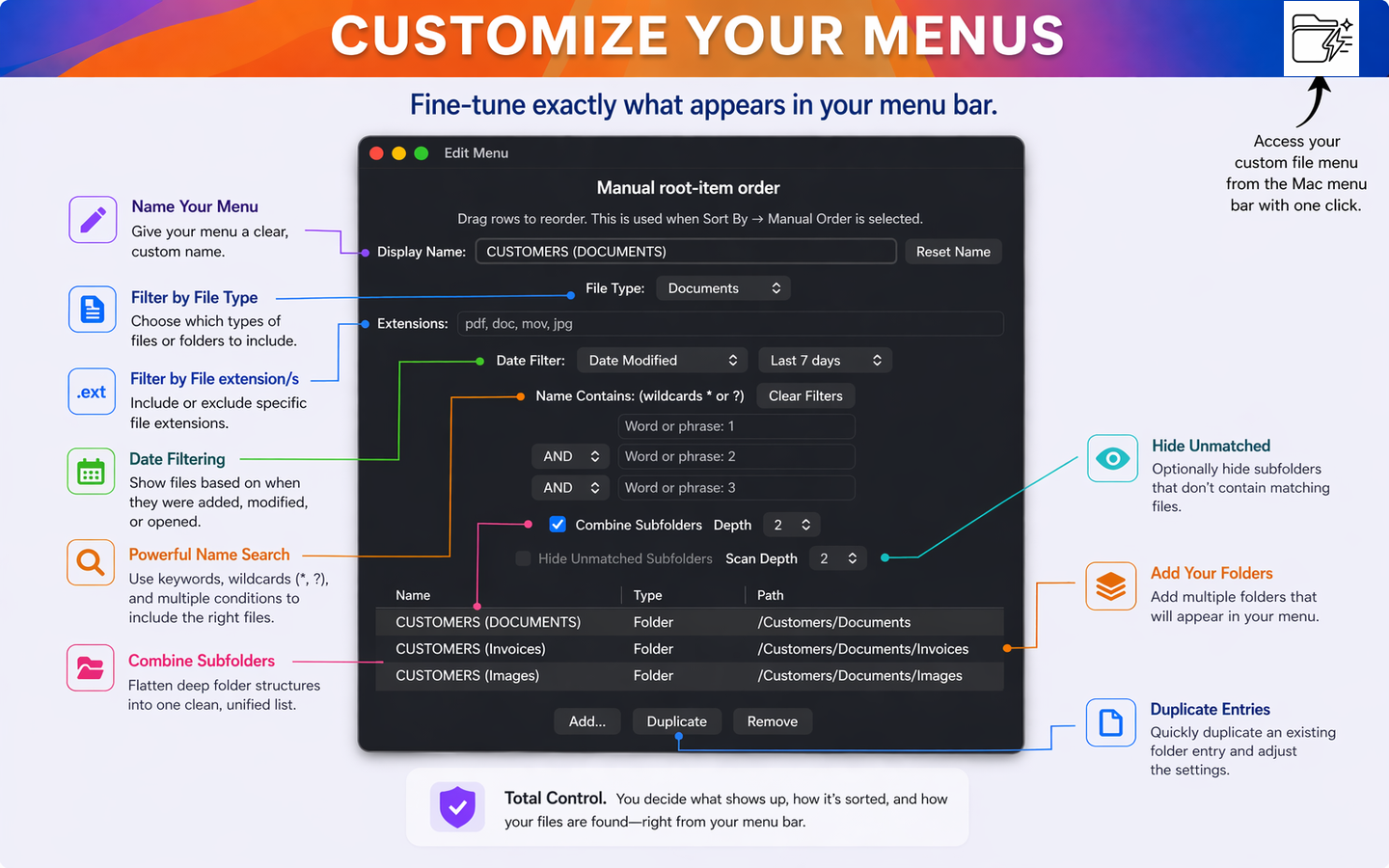
- 4Filter the list. Use file type, extension, name matching, date rules, and folder-depth controls to remove everything that does not belong.
- 5Sort and pin. Sort by the way you work, then pin the files or folders you never want to hunt for.
- 6Open it from the menu bar. Once the list is curated, FolderyMenu becomes a shortcut to the exact working set you built.
The tools that make specific file lists possible
Custom menu names
Give each list a human name. A good name makes the menu feel like a task: "Invoices to Review", "Logo Exports", "Client Matter PDFs", or "Downloads to Upload".
Folder selection
Build a menu from the folder that matters. Use a client folder, project folder, cloud-drive folder, shared folder, or Downloads as the starting point.
File type filters
Show only the kind of files you need. Keep a menu focused on documents, images, PDFs, spreadsheets, or other working file types.
Extension filters
Get more specific with extensions. A designer might show only PNG or JPG files. An accountant might focus on CSV or PDF exports.
Name matching
Find files by the words in their names. Build lists around client names, project codes, invoice numbers, dates, campaigns, or recurring naming patterns.
Wildcard searches
Use wildcards when filenames are consistent but not identical. For example, a search like "receipt-May*26" can help gather a month of receipt files.
Date filtering
Focus on files from the time period that matters: recent downloads, this month's exports, newly updated project files, or documents changed today.
Folder depth
Control how far FolderyMenu looks into subfolders. Keep the list shallow when you want a clean top-level view, or go deeper when the files live inside project branches.
Folder-name search
Sometimes the folder name matters more than the file name. Search for matching folders, then browse or list files inside those matching folders.
Consolidated lists
Flatten files from many subfolders into one list when the files matter more than the folder structure. This is ideal for assets, receipts, exports, and review queues.
Sorting
Sort by the logic of the job. Use newest first for active work, name order for reference lists, or your preferred order when the workflow has a natural sequence.
Pinned favorites
Pin the files and folders you open constantly so they stay easy to reach even as the rest of the list changes.
Curated lists you can build in minutes
For client work
- Root folder: client project folder.
- Filters: PDFs, images, or files with the client name.
- Sort: newest modified first.
- Pin: proposal, contract, upload folder, and client portal link.
For Downloads
- Root folder: Downloads.
- Filters: recent PDFs, images, CSVs, or screenshots.
- Sort: newest first.
- Use: quickly find files you just downloaded, exported, or need to upload.
For accounting and taxes
- Root folder: tax year, receipts, or client folder.
- Filters: PDF, CSV, invoice, receipt, or a month-based wildcard.
- Sort: date modified or name.
- Use: collect the right documents without combing through every subfolder.
For designers and creators
- Root folder: exports, brand assets, campaign folder, or cloud drive.
- Filters: JPG, PNG, PDF, SVG, or campaign name.
- Sort: newest first for exports, name order for brand assets.
- Use: drag final files into websites, emails, CMS tools, and design apps.
Curate for the work, not the archive
The best FolderyMenu lists are not giant. They are useful. If a list becomes too long, tighten the folder, add a name filter, limit file types, reduce folder depth, or pin only the items that matter most. FolderyMenu works best when it reflects your current work, not your entire drive.
A simple starter setup
Create three lists: one for your current project, one for Downloads, and one for a cloud-drive folder you use every day. Add filters, pin the files you trust, and adjust until each menu feels like it was made for one job.