You probably need FolderyMenu™ if this sounds familiar
- Again?You open the same project folder five or ten times a day.
- Cloud mazeYou jump between OneDrive™, Google Drive™, Downloads, Desktop, and Documents just to get back to current work.
- Window clutterYour screen fills with Finder windows because each one is a breadcrumb back to something important.
- Upload huntYou download, rename, export, or screenshot something, then spend time finding it again to upload or send it.
- Same filesYou keep opening the same PDF, spreadsheet, template, folder, app, settings pane, or web dashboard.
Built for real Mac workflows
FolderyMenu is useful for anyone who lives in active folders, but it is especially helpful when your files are tied to clients, projects, cases, reports, exports, or cloud storage.
Developers
Pin repos, build folders, logs, screenshots, config files, documentation, downloads, and deployment assets. Jump back to the working set without rebuilding Finder paths.
Designers
Keep brand folders, image exports, client assets, fonts, screenshots, and upload-ready files near the design apps and webpages where you use them.
Lawyers
Keep active matter folders, forms, exhibits, PDFs, templates, client folders, and dated document sets available without stacking Finder windows.
Accountants
Reach tax folders, receipts, bank statements, client files, monthly exports, shared spreadsheets, and report folders faster during busy seasons.
Project managers
Pin roadmaps, specs, meeting notes, vendor docs, dashboards, shared folders, and current deliverables so the project desk is always one click away.
Cloud-drive users
If OneDrive™, Google Drive™, and Downloads are where your work lands, FolderyMenu helps you stop re-navigating the same cloud folders over and over.
Finder is for browsing. FolderyMenu is for getting back to work.
Use Finder when you need to explore
- Browse unfamiliar folders.
- Organize a whole directory.
- Move large groups of files.
- Search broadly across your Mac.
Use FolderyMenu when you already know what matters
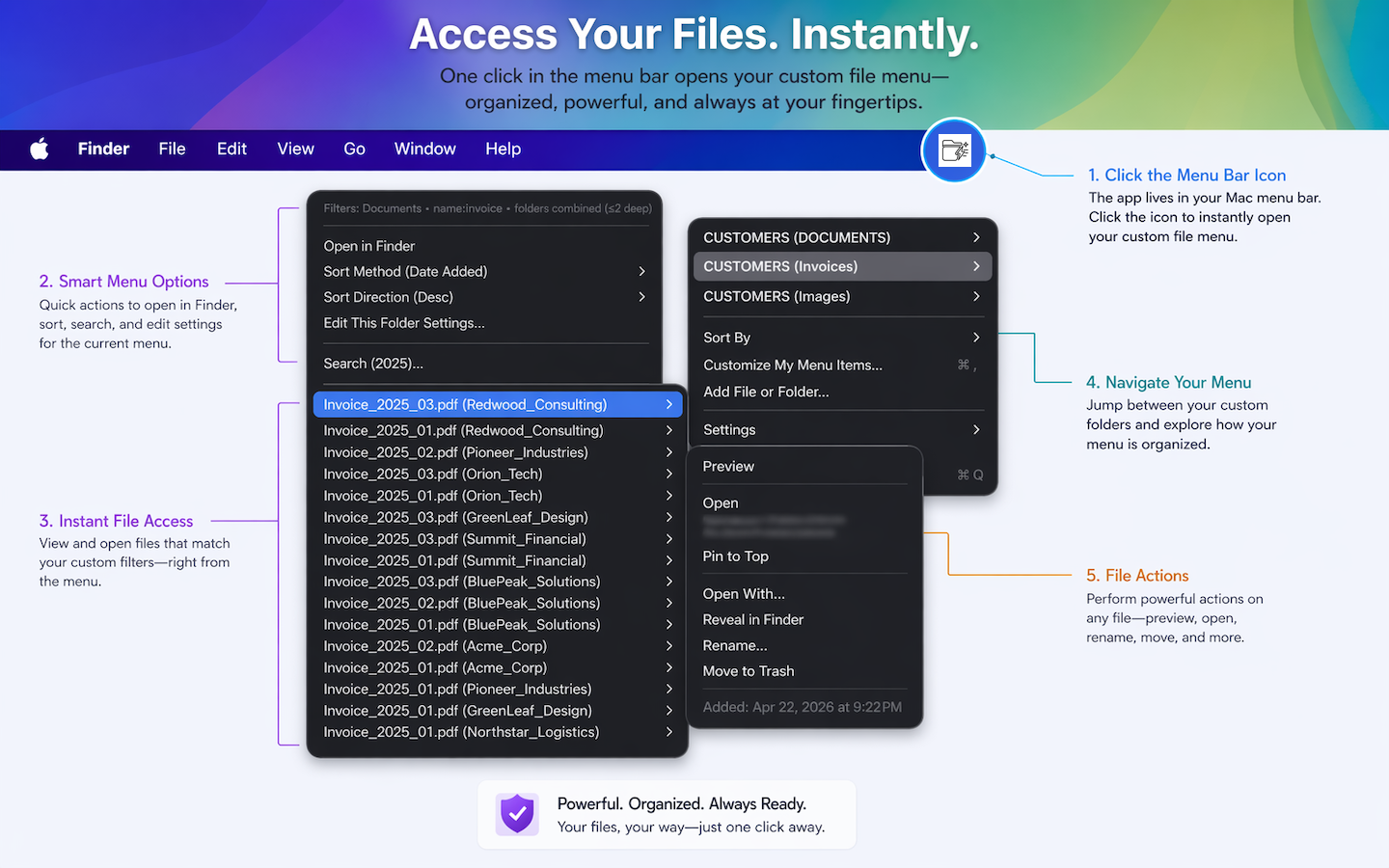
- Open current project folders from the menu bar.
- Pin favorite files, folders, apps, and webpages.
- Use saved filters for the files you need most.
- Consolidate subfolders into one faster working view.
What one-click access looks like
Client work
Put the client folder, proposal PDF, logo assets, screenshot folder, billing portal, and current spreadsheet in one menu.
Downloads cleanup
Keep Downloads close, filter what you need, then open or drag files into email, webpages, design apps, or project folders.
Recurring documents
Pin price lists, templates, forms, reports, tax folders, and reference PDFs instead of searching for them again.
Small friction adds up fast
Opening Finder, clicking through a cloud drive, searching a folder, resizing a window, then doing it again later does not feel dramatic. It just quietly drains attention. FolderyMenu removes that repeated setup step.
When the files and folders you use most are already in your menu bar, your Mac feels less like a filing cabinet and more like a workspace.
A simple way to start
Add your current project folder, your Downloads folder, one cloud-drive folder, the file you open every day, and one web dashboard. Pin the true essentials. Use Finder for everything else.